Learn MocapX
Everything you need to know to capture facial animation with your iPhone and Maya
What is MocapX?
MocapX is a professional facial motion capture solution for Autodesk Maya. The MocapX app uses iPhone and iPad Face ID technology to capture 52 facial expressions, head movements, and eye tracking in real-time and seamlessly transfers them to any Maya rig.
Whether you are working with blendshape-based characters or complex controller rigs, MocapX bridges the gap between live performance and keyframe animation, giving animators an intuitive and fast way to bring characters to life.
What hardware do I need?
You need an iPhone or iPad with Face ID technology and Autodesk Maya to work with the animation data. The Face ID sensor (TrueDepth camera) is what enables high-fidelity facial tracking at 60 frames per second.
Compatible iOS Devices
Requires iOS / iPadOS 15.0 or later
Autodesk Maya
Maya 2024, 2025, or 2026.
Installation
MocapX is available on Windows and macOS. Download the Maya plug-in from our website, install it following the platform-specific instructions, and get the MocapX app from the App Store on your iOS device.
iOS App
Download the MocapX app from the App Store. The app includes a live preview, real-time streaming, offline recording, and multidevice support.
Get iOS AppMaya Plug-in
Download the installer from the MocapX website. Run the installer and follow the on-screen instructions. The plug-in will be automatically available in Maya after restart.
Download Plug-inHow MocapX works in Production
The MocapX app recognizes and tracks facial expressions, head rotation, and eye movements using the Face ID sensor. It can preview the tracked data on a 3D model in real-time directly on your device, or stream the data into Autodesk Maya.
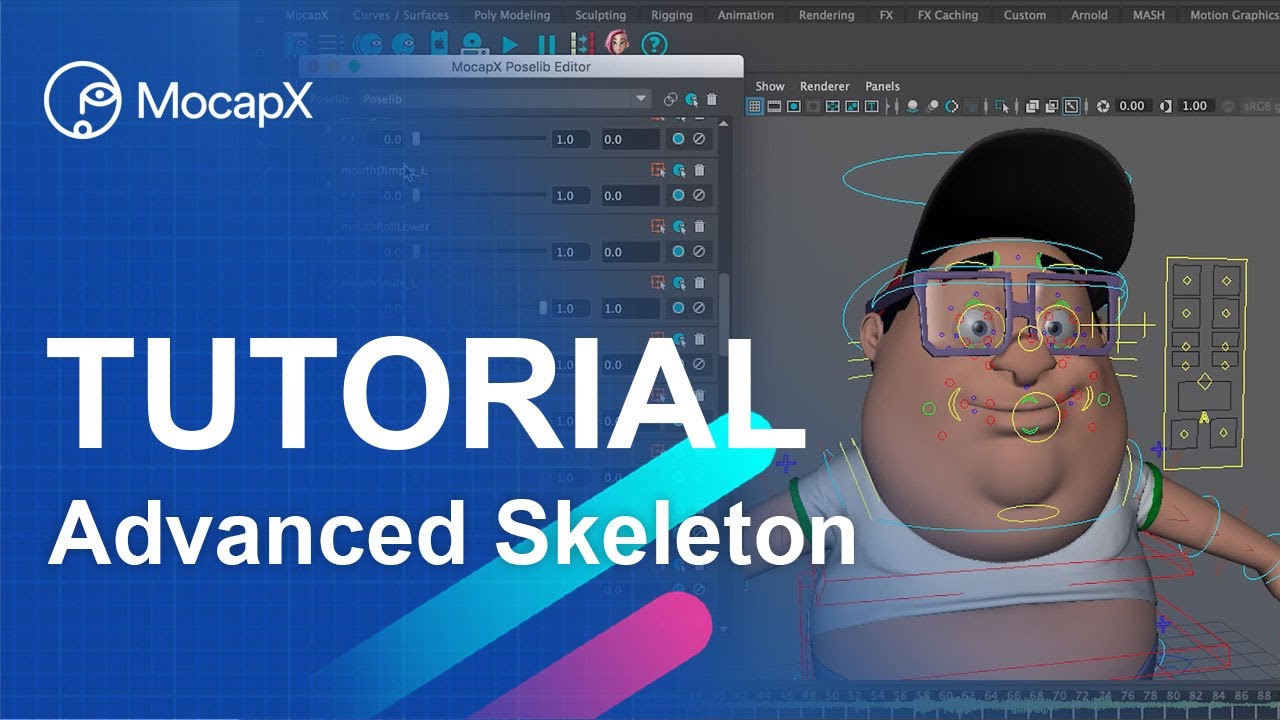
In a production environment, MocapX integrates seamlessly with professional rigs like Advanced Skeleton. You can stream data directly to Maya for live animation sessions, or record locally on your device for later use. While streaming, you see a live preview of the captured performance applied to your character rig inside the viewport.
Streaming and Recording
MocapX supports two connection methods and multiple ways to capture your performance data.

Connection over USB
Connect your iPhone via USB or USB-C cable. Make sure your computer recognizes the device. In Maya, create a Realtime Device from the MocapX shelf, select USB, and click Connect. Windows users need iTunes installed.
Connection over WiFi
Ensure your iPhone and computer are on the same network. In Maya, create a Realtime Device, select WiFi, and enter the IP address shown in the MocapX app. Click Connect to begin streaming.
Preview on a 3D model
To preview the data on a 3D face, you can use a rig or a model with blendshapes. For a quick start, use our demo character or skip to the section on setting up your own character.
Recording in Maya
While streaming, you can save the data to a file at any time. Data is stored in the MocapX format (.mcpx) and can be loaded with the Clip Reader. Maya stores incoming data in a buffer, so you can save the last 30 or 60 seconds of your performance.
Offline Recording
With the MocapX app, you can record motion capture data locally on your device without streaming to Maya. This is ideal for on-location captures when you do not have a computer nearby.
Data is stored in the same .mcpx format and can be transferred to your computer via AirDrop, email, Dropbox, or USB file copying. Once transferred, use the Clip Reader in Maya to load and apply the recorded performance to your character.
Rig or Blendshapes?
MocapX works with both blendshape-based and rig-based setups. Choose the workflow that matches your character.
Connection to a Rig
To connect MocapX data to your rig, create Poses (facial expressions) that will be driven by the motion capture data. The process is straightforward: recreate a set of facial expressions with your rig controllers, and MocapX will blend between them based on the captured performance.
Connection to Blendshapes
To connect MocapX data to a model with blendshapes, make a simple direct connection between the MocapX Realtime Device node (or Clip Reader) and your blendshape node. No Pose Library setup is needed if your blendshapes match the ARKit naming convention.
How to prepare Poses with a Maya rig
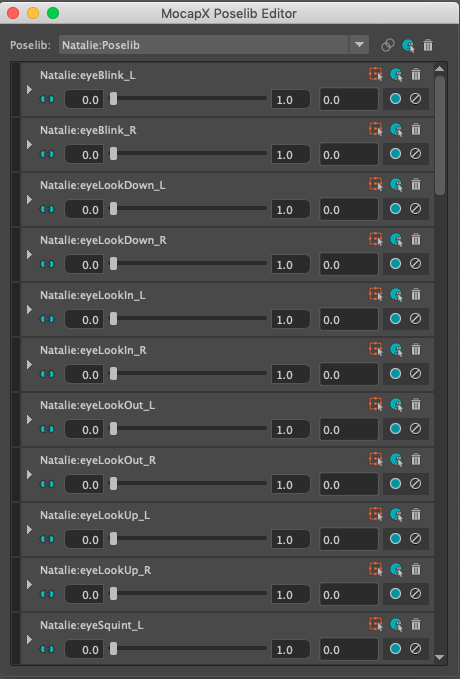
The PoseLib Editor is where you create the mapping between captured facial expressions and your rig controllers. Before creating your first Pose, you need to add all controllers of your rig into an Attribute Collection. The Attribute Collection is a MocapX node that stores all the information about your rig's controllers and their rest (neutral) values.
Once the Attribute Collection is set up, open the PoseLib Editor and create a Pose for each facial expression using the plus icon. For each pose, move the rig controllers to match the expression, and MocapX will record those values. During playback, the mocap data drives a 0-to-1 transition between the relaxed state and the extreme state of each pose.
How to prepare Blendshapes
Preparing blendshapes for MocapX involves modelling or sculpting your geometry to match the predefined MocapX expressions. Use the viewer below to browse all 52 expressions and compare the neutral face with each activated pose.
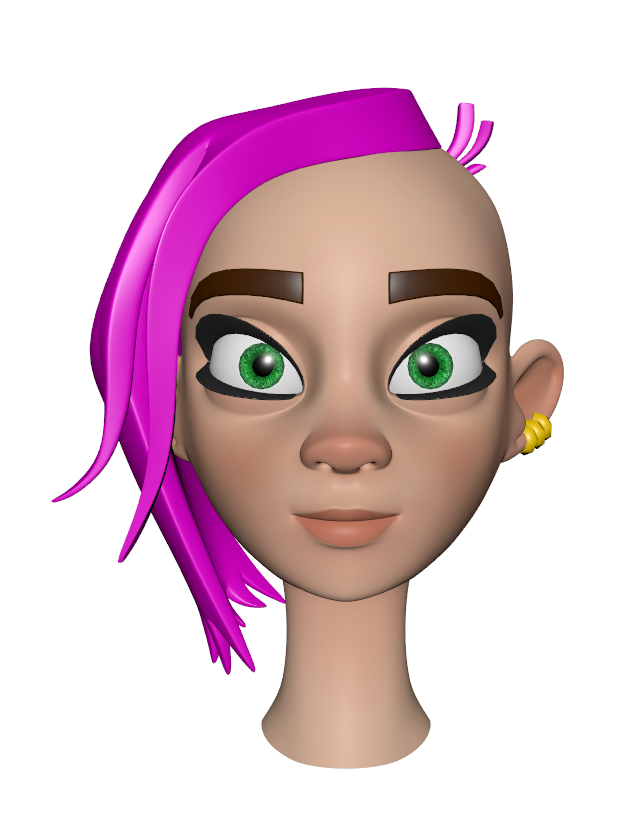 Neutral
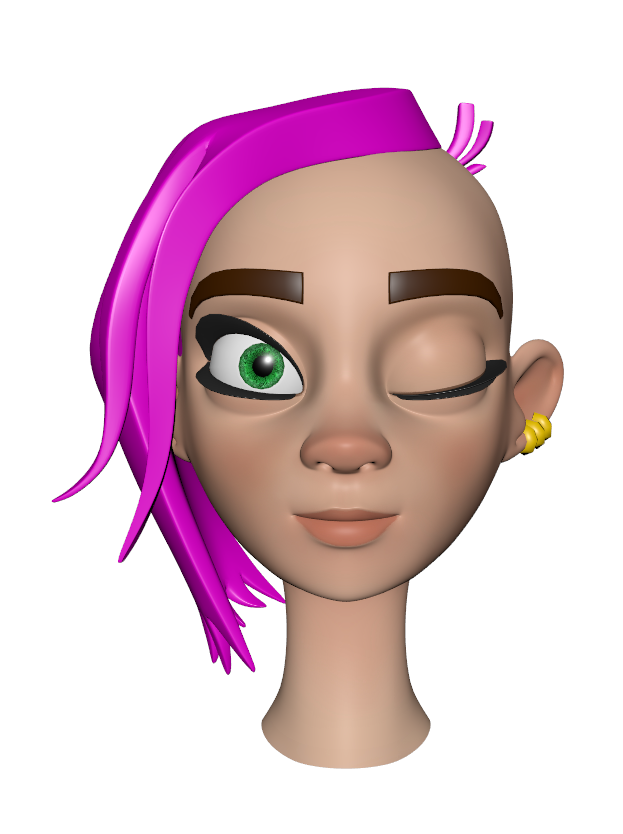 eyeBlink_L
Working with MocapX data
Once you have captured motion data to a clip, you can start polishing the animation. MocapX allows you to animate over the captured data by adding keyframe animation on top of your controllers. This non-destructive workflow lets you refine specific parts of a performance without losing the original capture.
Another approach is to bake the animation first using the MocapX Bake tool. Once baked, the data becomes standard Maya keyframes that you can edit in the Graph Editor, apply animation layers, use filtering methods, and export to any format Maya supports.